Build Notes · Case study: circularsurrealism.com
How to build a website with AI, step by step (from a real 396-prompt build)
How to build a website with AI that doesn't look like every other AI site: 8 steps from a real 396-prompt Grok Build case study, with copy-paste prompts.
Most "build a website with AI" tutorials end after the first ten minutes: you type a sentence, a landing page appears, done. That is a real site, but it is rarely a high-end one, and it often looks like every other AI-built site. A high-end site knows your content, has rooms with clear jobs, opens fast on a phone, and keeps working after you stop touching it.
This is the step-by-step method behind circularsurrealism.com, an AI artist's museum-style site vibe coded with AI by one person in Grok Build. It took about 8 weeks and 396 prompts, from 27 August to 23 October 2026. The site holds 439 works in 27 collections, live sales data, themes, deep zoom and a print shop. Everything below comes from that build, including the parts that went wrong.
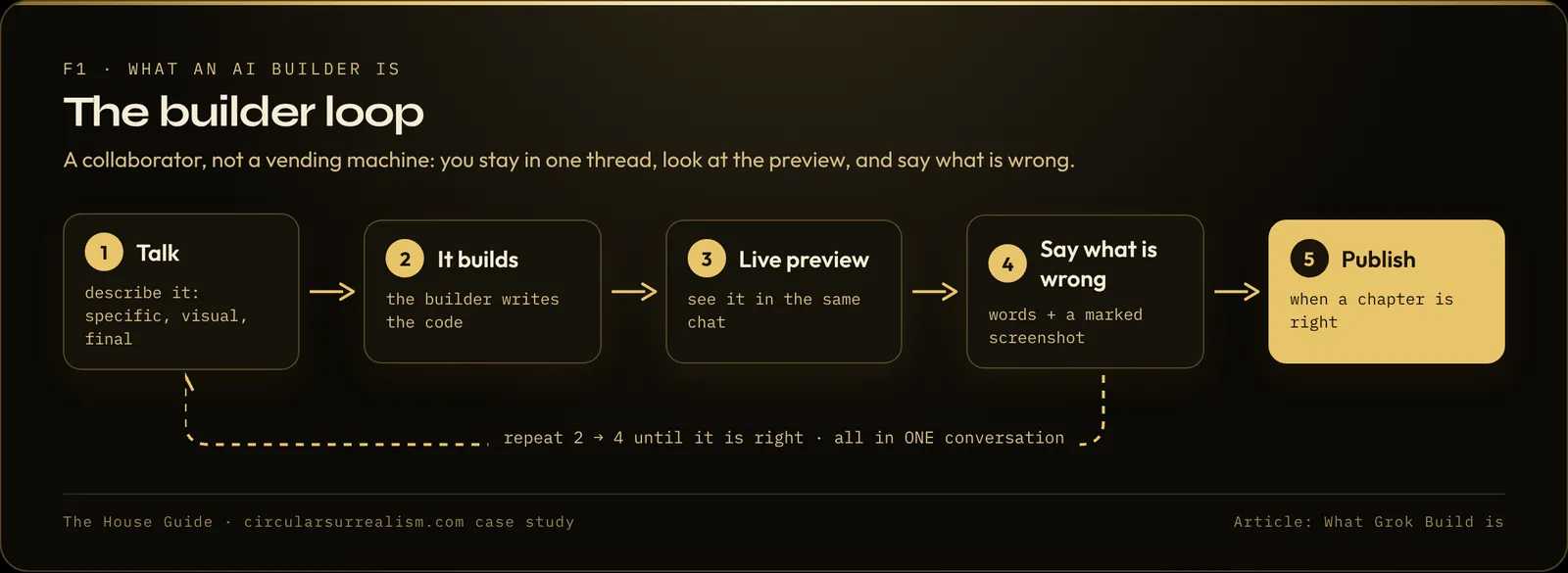
Can Grok Build build a real website?
Yes. The case-study site is a full multi-page site on its own domain, not a single landing page: an archive of every work, one page per collection, one page per item, an activity ledger, a print shop and a set of "Studio" pages. It was built entirely by talking to Grok Build in one conversation. The method below is not specific to Grok Build, though; the prompts work with any AI website builder.
Step 1: Start from your content, not from a template
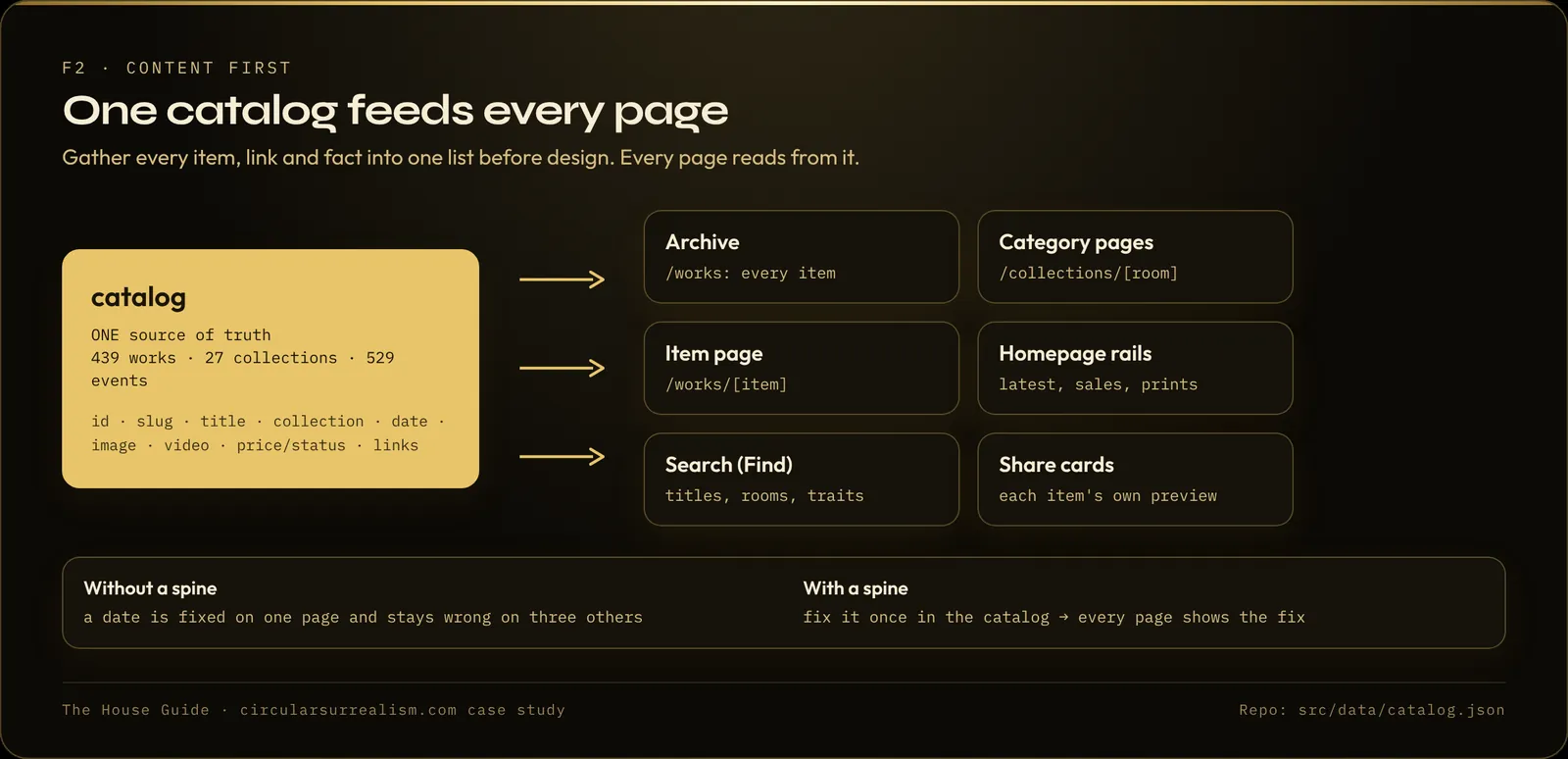
The build did not start with "artist portfolio, dark mode, three pages". It started with what already existed: the full inventory of works, the collections, the links where each piece can be bought, the existing link pages, and the words the artist uses.
An AI builder cannot invent your material. It can arrange it. So before your first prompt, make the inventory:
- Every item you want on the site (projects, products, services, works) with a title, a short description, an image, and a link
- The groups they belong to (collections, categories, services)
- Where each one can be bought, booked or contacted
- The words you use for yourself, in your own voice
A spreadsheet is enough. In the case study, this inventory became one catalog file that feeds every page: the archive, the category pages, the item pages and the homepage rows. A beautiful empty site is still empty.
Your first prompt
This site is for [what you do and who it is for]. Here is my full inventory: [paste or attach]. Build the catalog first: one page per item, one page per [category], and a homepage that leads into them. Use my words for the titles and descriptions.
Step 2: Keep one site in one conversation
Keep the whole site in one long conversation. Every edit stacks on what is already true. If you want a second, unrelated site, open a new chat. In the case study the artist asked about this before starting a side project, and kept it out of the main thread so it could not put the main site at risk.
Step 3: Write prompts that are specific, visual and final
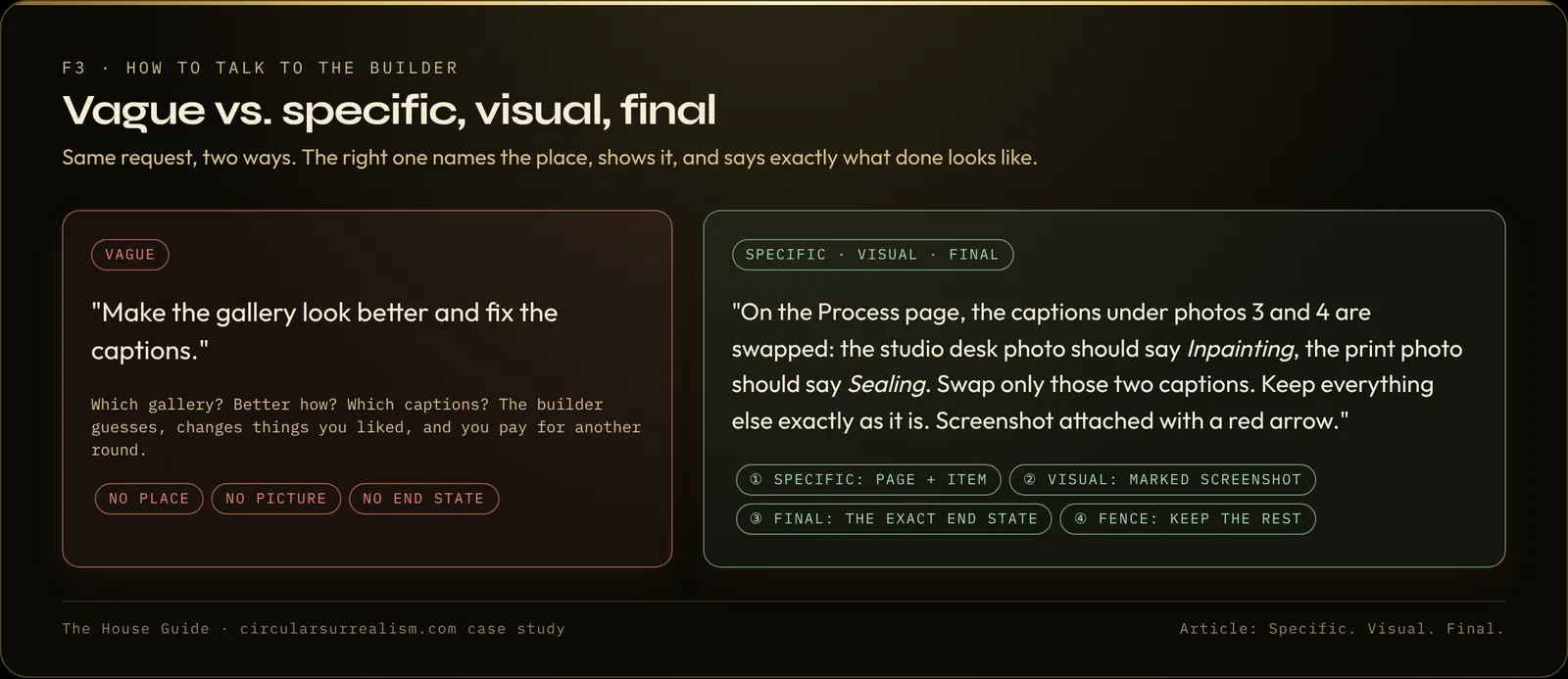
The prompts that moved the build were not tickets. They were short, specific instructions with a reason:
- One job per message when the job is visual: "switch those two captions"
- The reason, not just the feature: "put the mosaic in its own room so the site does not crash"
- The live link, once the live thing exists
- A screenshot with arrows when words are not enough
Vague requests ("make it nicer") get vague results. Final ones ("Mystic Orbs, not Orbs") get done. This is also the main answer to why so many AI websites look the same: the builder fills every gap you leave with its defaults.
Step 4: Say no, even after spending credits
Two features in this build were built and then removed: a 3D gallery that made the work look worse, and a deep-zoom "tile pyramid" that was built, published, and then taken out because the tiles showed their edges. The earlier, simpler versions were better.
A high-end site is as much about what you refuse as what you add. If a clever feature makes your main content look cheaper, take it out.
Step 5: Give every page one job
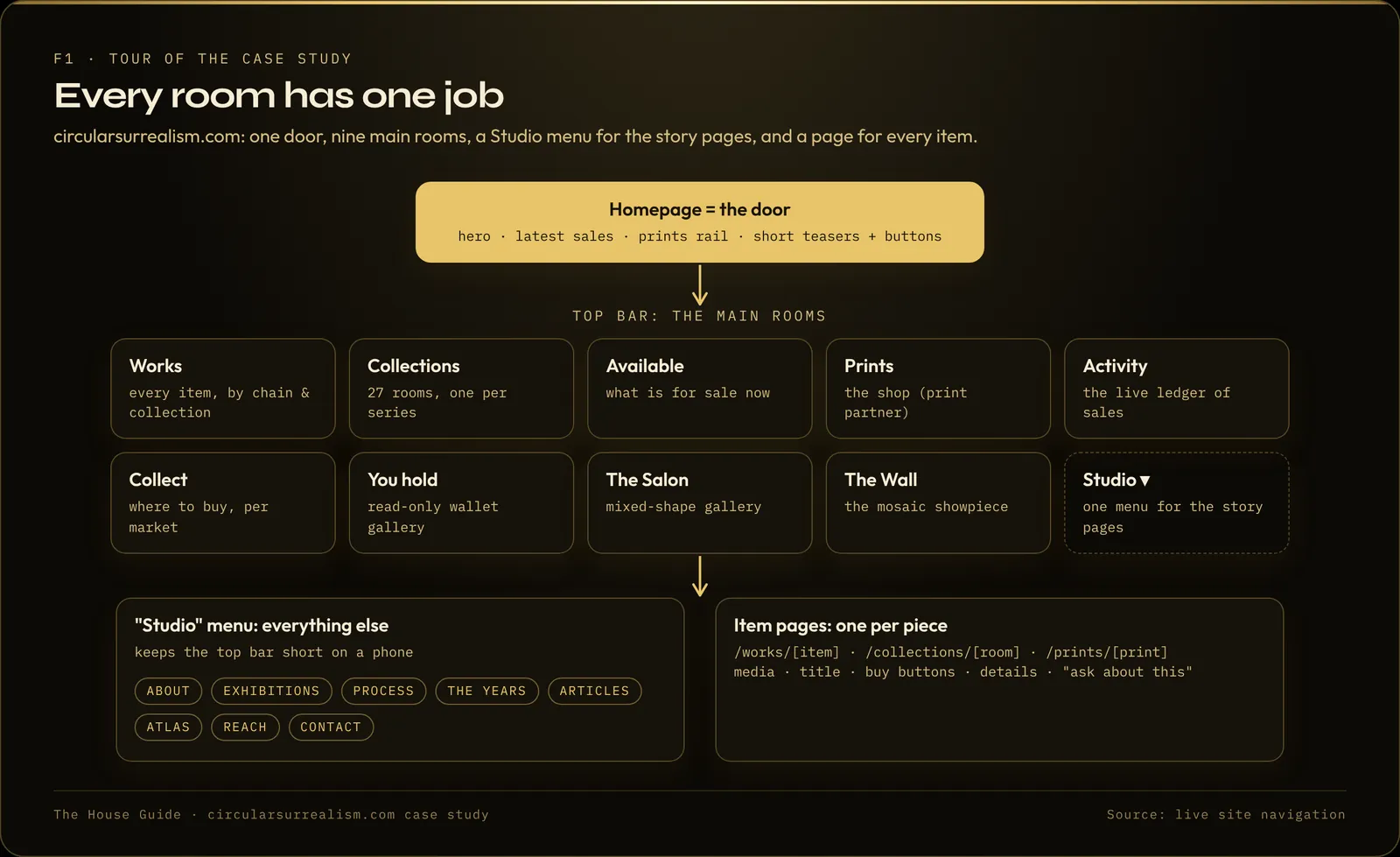
"If everything is on the homepage, nothing is." The homepage in the case study is a door: a short intro, then rows that lead into the rooms. Heavy features (a mosaic of hundreds of tiles, a long sales history) get a sentence and a button on the homepage and live on their own page.
For each page, ask: what is the one job it does for a visitor? If two pages do the same job, cut one. When the top menu grew to 11 items, the secondary pages (About, Process, Exhibitions and others) moved under a single "Studio" menu.
Step 6: Make it light before you call it done
The site was "done" in the sense that every page existed. It was also heavy: 4K video playing on small cards, original image files on thumbnails, a homepage that could crash on a phone. The fix took its own stretch of work, most of it between 16 and 21 September:
- 720p video loops on cards, with 4K only on the hero and when an item is opened
- Card-size webp images; one card image went from a 31 MB PNG to about 40 KB
- Videos that pause when scrolled off screen
- A publish that failed with 86 videos (about 120 MB) went through at 25 files (about 34 MB)
The full performance method is in Website slow on mobile? 8 fixes for AI-built image and video sites.
Step 7: Publish in chapters, own your domain, keep a backup
Do not wait for a perfect final version, and do not publish everything at once. Publish when a chapter is true. Then:
- Connect a domain you own (the builder shows the DNS records; you paste them at your registrar)
- Export the files to GitHub, so you own a copy even if something breaks
The case study lost the preview early on and recovered by pointing the builder at the live URL instead of starting over. The steps are in Grok Build: publish, custom domain, GitHub backup and lost-preview recovery.
Step 8: Write the important words yourself
The builder can lay out the rooms. The sentence under your name, the About page, the description of your work: bring those yourself and ask it to recut them until they sound like you. In the case study, the About bio went through several rounds of edits across the build (removing a repeated tagline, adding the artist's origin, adjusting how the domains are named) until it said the right thing.
How long does it take, and what does it cost?
Be honest with yourself about time. This site took about 8 weeks and 396 prompts. It was built on the $11-a-month X plan at the time, plus at least $75 in $5 extra credit packs, and the builder ran out of credits in the middle of hard fixes more than once. A simpler site will take less. A high-end one takes sitting with the preview until it is right. Plans and prices change, so check your builder's current ones.
FAQ
Do I need to know how to code to build a website with AI?
No. The case-study site was built by an AI artist who is not a developer, entirely by describing what they wanted and reacting to the live preview.
Why does every AI website look the same?
Because the builder fills every gap with its defaults. Bring your own content, your own words and specific, visual instructions, and refuse features that make your work look generic.
Does this method only work for artists?
No. The case study is an AI art site, but the same structure (inventory, one page per item, category pages, a homepage that is a door) fits a freelancer portfolio or a small business site.
Go further
The full method, with every module of the real build, 18 reusable prompts, and the failures and fixes, is written up in The House Guide. It also includes two worked examples outside art: a freelancer portfolio and a small business site. If you only want the essentials, Quick Start covers planning, performance and publishing.
The guides
Build your own high-end site with AI
The House Guide
Most complete$29$39
$29 founding price for the first 50 buyers, code FOUNDING50
- 20 modules, 102 written lessons
- 126-page PDF + EPUB
- Deep dives: live data, live counters, catalog and shop, performance, deep zoom, hero and search, gallery, themes and UI
- Prompt library (18 prompts), troubleshooting playbook, build diary
- 30-day refund
Quick Start
$19
- 7 modules, 39 written lessons
- 55-page PDF + EPUB
- Planning and content, the full performance module, publish, domain, backup, launch review
- Prompt library (18 prompts)
- 30-day refund
Performance Checklist
Free
- 12-item checklist
- The full 7-lesson performance module
- 13-page PDF
Written guides, no coding needed, works with any AI website builder.
Built with Grok. The case-study site was built with Grok Build by xAI. This article and the guides are independent and are not made, endorsed or sponsored by xAI.