Build Notes · Case study: circularsurrealism.com
Why your AI-built website is slow on mobile, and 8 fixes for image and video heavy sites
AI-built site slow or crashing on phones? 8 fixes from a real media-heavy build: card-size webp, 720p video loops, off-screen pause and lighter publishes.
An AI builder will happily put your original files everywhere: a 4K video in a small card, a 31 MB image in a thumbnail, a mosaic of hundreds of full-size images on the homepage. The site works on your computer. On a phone it feels heavy, and it can crash.
That is what happened to circularsurrealism.com, a media-heavy AI art site built with Grok Build. It was "done": every page existed. Then it took its own stretch of work, mostly 16 to 21 September 2026, to make it light. This article is that fix, step by step, with the prompts. It applies to any AI-built or "vibe coded" site with lots of images or video.
A note on honesty: load times were never measured in that build, so there are no "X seconds faster" claims here. Measure your own site before and after (a phone screen recording, or the Lighthouse report in Chrome's developer tools).
Why is your website slow on mobile?
On a media-heavy AI-built site, the usual reason is simple: small spaces are loading big files. A phone has less memory and often a slower connection than the computer you build on, so a page that pulls dozens of originals at once can stall or crash there first.
The rule that fixed it:
Small files where things are small. Originals only when someone asks for them.
Every fix below is that one rule applied to a different part of the site.
1. Move heavy features off the homepage
The site's mosaic ("The Wall") sat on the homepage, and the homepage sometimes crashed on mobile. The fix: keep a sentence and a button on the homepage and load the mosaic only on its own page. The same idea later moved the long sales history behind an "Open ledger" button.
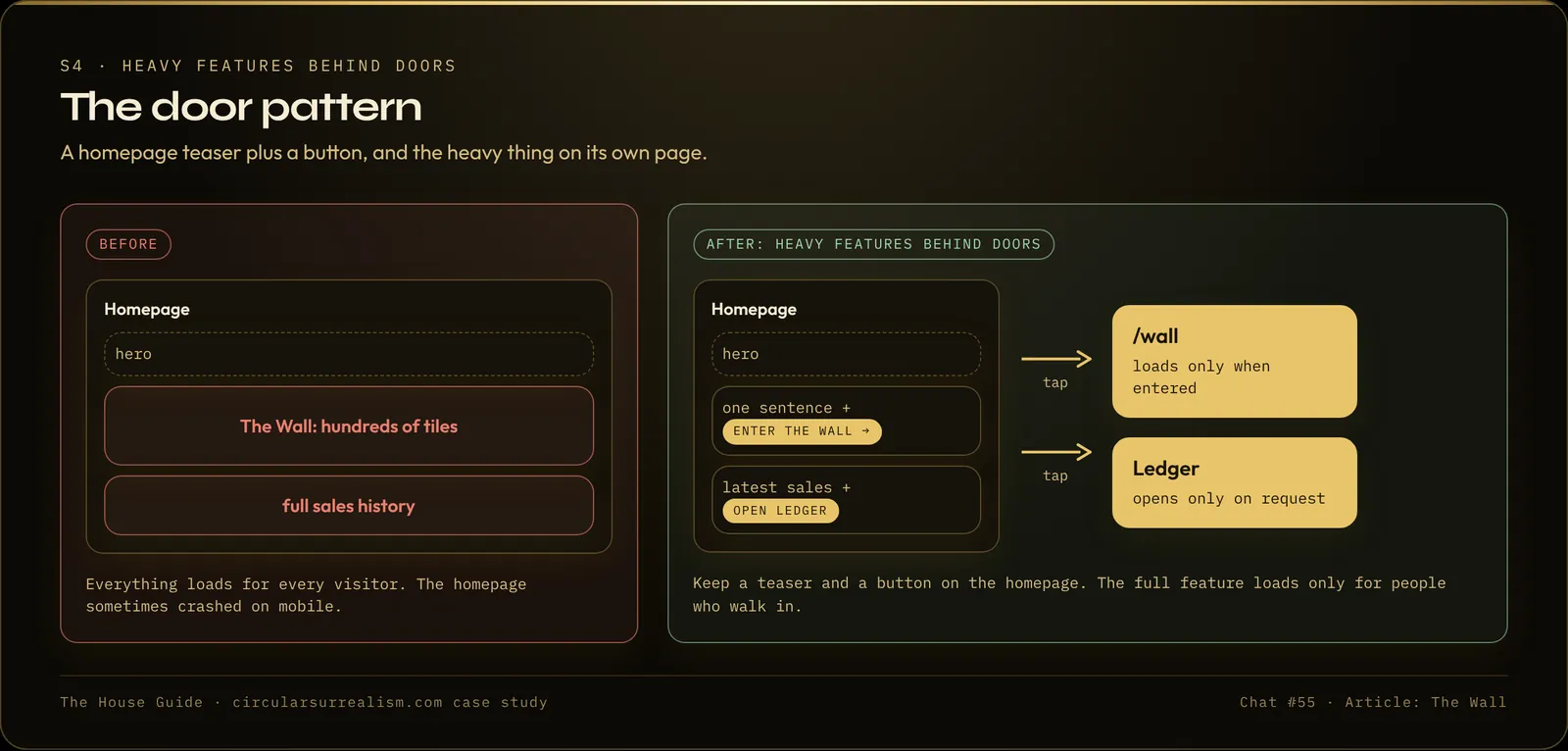
Keep the intro to [feature] on the homepage with a button to enter, and load it only on its own page, because the homepage is crashing on mobile. Do the same for any long list: show the first few and put the rest behind a button.
Check the moved feature right away. In the case study, the mosaic's tiles were invisible on the new page at first.
2. Optimize video for cards: light loops, not 4K
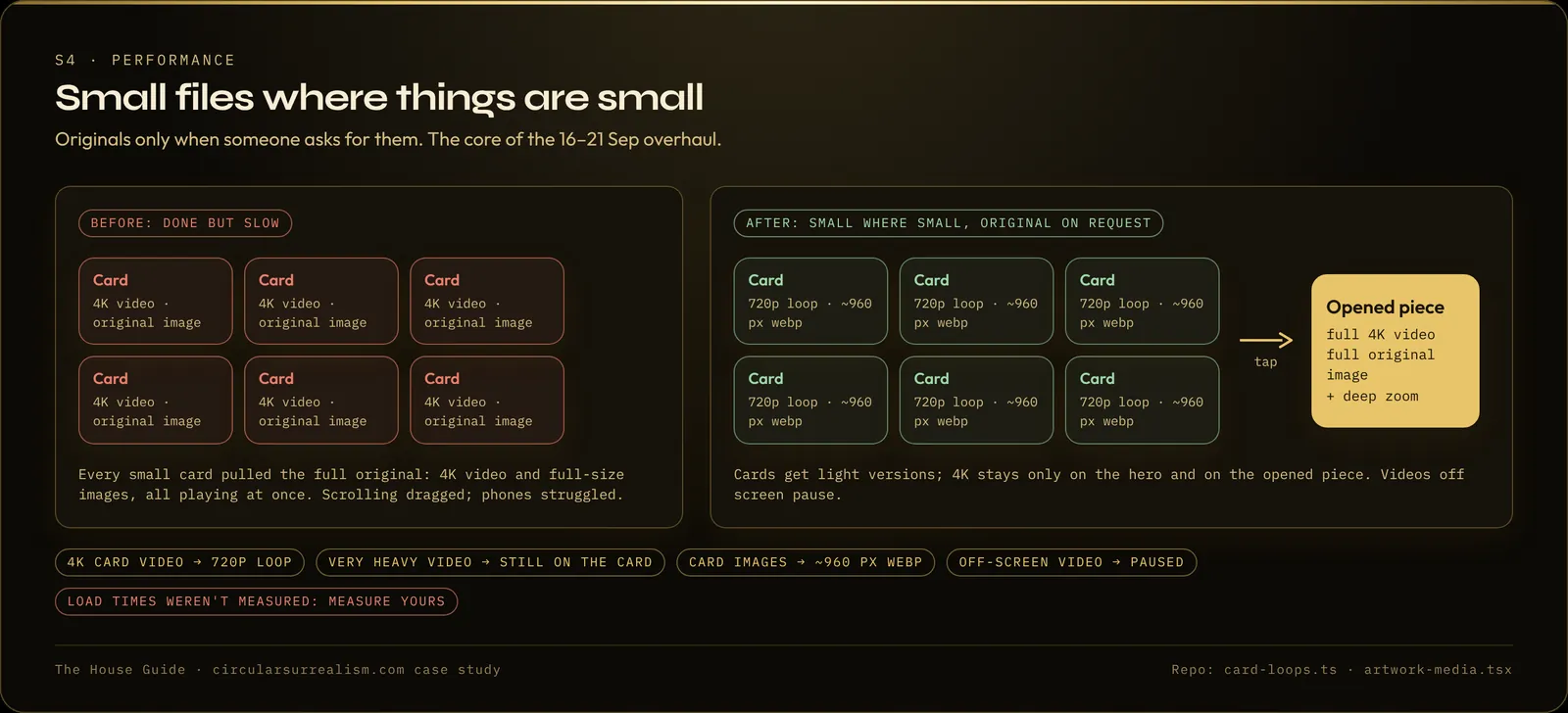
4K animations were playing on small cards. The fix: a 720p loop for every card, with the original 4K only on the homepage hero and when someone opens the item. One video was too heavy even as a loop, so its card shows a still, and the motion plays only when it is opened.
Use 720p video for every card. Keep 4K only on the hero and when an item is opened. If a video is still too heavy for a card, show its still image on the card and play the video only when the item is opened.
3. Make images load faster with card-size webp
Then the same for still images. Cards now load a sharp webp of about 960 pixels wide, while the hero and the opened item keep the original. One card image had been a 31 MB PNG. It became about 40 KB.
Check which cards load the original image files. Give every card a sharp card-size image (around 960 px wide, webp) and keep the original only for the hero and when the item is opened. Check category cover cards and homepage rows too.
Ask for a list of every card type. In the case study, collection cover cards were missed the first time and were still loading originals.
4. Pause (lazy load) video when it is off screen
Once every card had a light loop, the next step was to play only what visitors can see. Each video watches whether it is on screen (the browser's IntersectionObserver) and plays only when visible. The long timeline page plays one video at a time and unloads it when you move on.
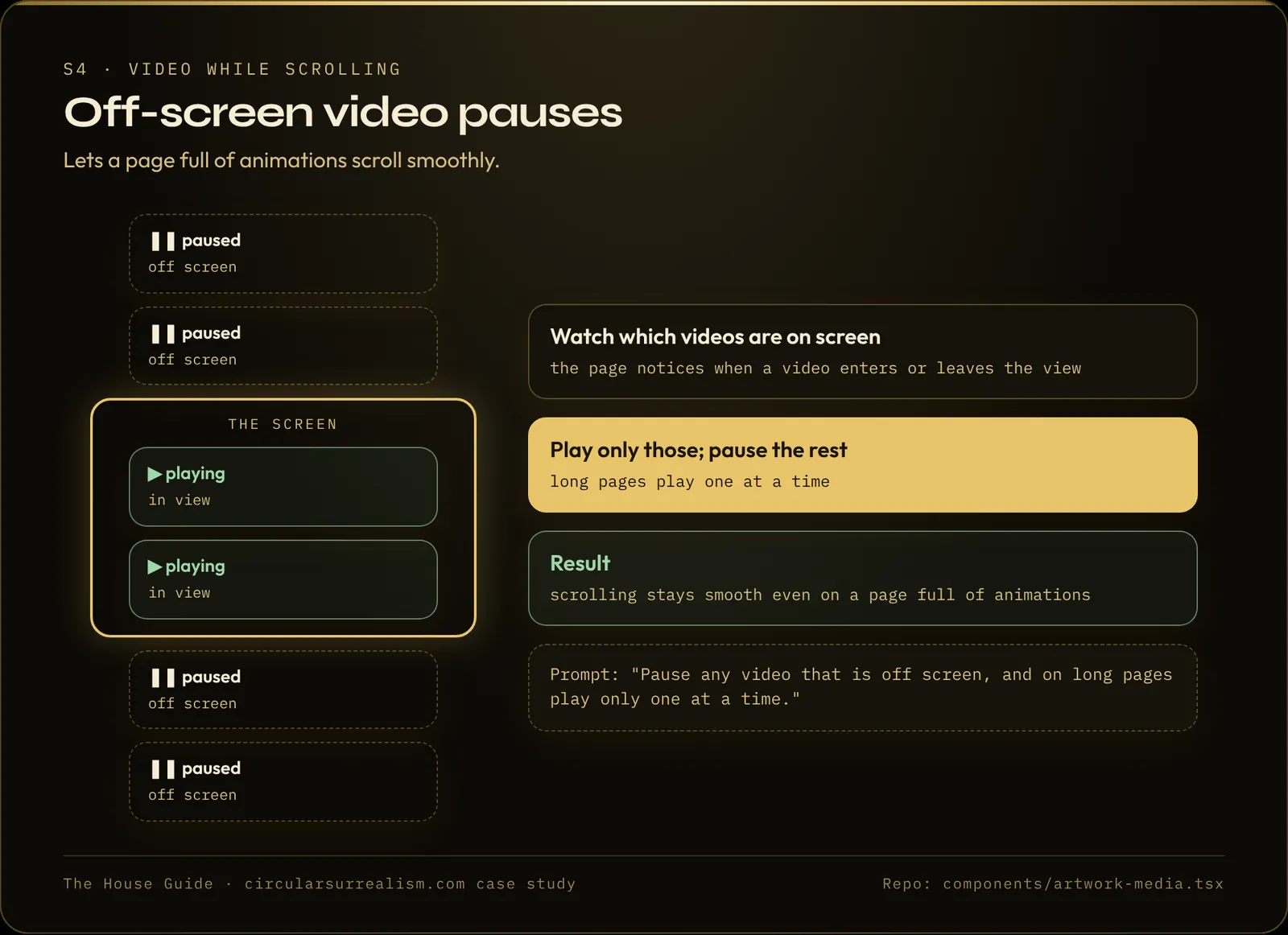
Make every video play only while it is visible on screen and pause when it scrolls away. On [long page], play only one video at a time and unload it when the visitor moves on.
Side effect to watch: on a computer, the sound kept muting itself a couple of seconds after the visitor unmuted, because the video re-buffered. Rule: if a visitor asks for sound, it stays on until they turn it off.
5. Big image grids need tiny tiles
The mosaic was the same lesson at a larger scale: about 500 tiles, each loading an original file into a cell only about 12 pixels wide. The phone gave up when the mosaic approached 120 to 130 tiles, sometimes as early as 90. The fix: each tile became a 128 px webp, shown small, loading six at a time. Hover, zoom and tap-to-open all still work.
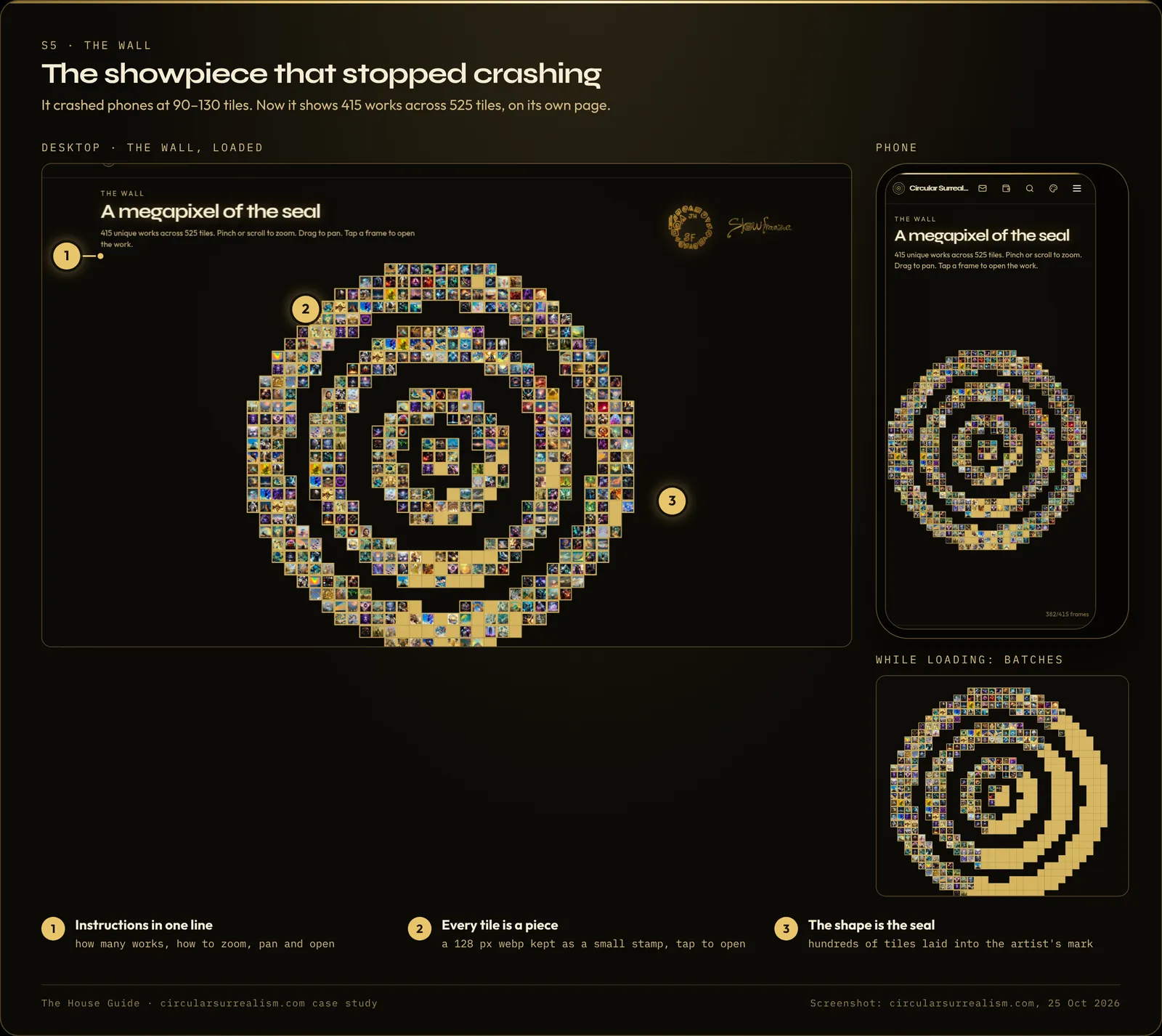
The [grid] crashes after about [N] tiles because it loads the original files. Make each tile a tiny webp (128 px), load a few at a time, and keep the tap that opens the full item.
6. Know your publish weight
The first publish with the new light loops carried 86 videos, about 120 MB. It sat on "Deploying", failed, and the light videos never reached the live site, even though the preview had them. Shipping light loops only for the heaviest pieces, 25 files and about 34 MB, went through.
Before I publish, tell me how many media files and how many MB this publish adds. Keep light versions only for the heaviest files, and remove anything in the project the site does not use.
If the preview has something the live site does not, the publish did not finish. More on this in the Grok Build publish guide.
7. Never leave a dead tap or a blank hole
"When a tap feels dead, it is not always slow. Sometimes it is silent." A small loading animation when the menu is tapped, and a placeholder that holds the space of an image while it loads, make a site feel faster even before it is.
When someone taps the menu or a link and it is still loading, show a small loading animation. While a card or hero image is loading, hold its space with a subtle placeholder instead of a blank hole.
8. Zoom the real file, not a bigger thumbnail
If your site has a zoom view, check which file it zooms. In the case study, two collections were opening 1,600-pixel copies from a marketplace image service instead of the real files. One true original was 5,760 × 7,200 pixels, about 51 MB. A tile pyramid was tried, published, and removed because the tile edges showed. What worked: small file on the card, real original only when someone opens the zoom, with a placeholder holding the frame while it loads.
The pre-publish performance checklist
- ☐ No heavy feature loads on the homepage; each has a teaser and a button
- ☐ Long lists behind a "Show all" button
- ☐ Card videos are light (for example 720p); originals only on the hero and opened items
- ☐ Very heavy videos show a still on the card
- ☐ Card images are card-size webp; originals only when opened
- ☐ Every card type checked
- ☐ Off-screen videos pause; long pages play one at a time
- ☐ Publish size known; unused files removed
- ☐ Every tap gives feedback; images hold their space
- ☐ Tested on a real phone
- ☐ Measured before and after
Get it as a printable: free performance checklist.
FAQ
Why does my site work on desktop but crash on my phone?
Phones have less memory. A page that loads many original images or videos at once can run out on a phone long before it does on a computer, as the mosaic in this case study did.
What size should images be on a website card?
The case study used webp images about 960 px wide for cards and kept the originals for the hero and the opened item. Tiny mosaic tiles used 128 px webp.
Will these fixes make my site faster by a specific number of seconds?
This build never measured load times, so no number is promised. Measure your own site before and after.
Go further
The performance overhaul is one module of The House Guide, the written path of the whole 396-prompt build. Quick Start ($19) includes it together with the foundation and publishing.
The guides
Build your own high-end site with AI
The House Guide
Most complete$29$39
$29 founding price for the first 50 buyers, code FOUNDING50
- 20 modules, 102 written lessons
- 126-page PDF + EPUB
- Deep dives: live data, live counters, catalog and shop, performance, deep zoom, hero and search, gallery, themes and UI
- Prompt library (18 prompts), troubleshooting playbook, build diary
- 30-day refund
Quick Start
$19
- 7 modules, 39 written lessons
- 55-page PDF + EPUB
- Planning and content, the full performance module, publish, domain, backup, launch review
- Prompt library (18 prompts)
- 30-day refund
Performance Checklist
Free
- 12-item checklist
- The full 7-lesson performance module
- 13-page PDF
Written guides, no coding needed, works with any AI website builder.
Built with Grok. The case-study site was built with Grok Build by xAI. This article and the guides are independent and are not made, endorsed or sponsored by xAI.